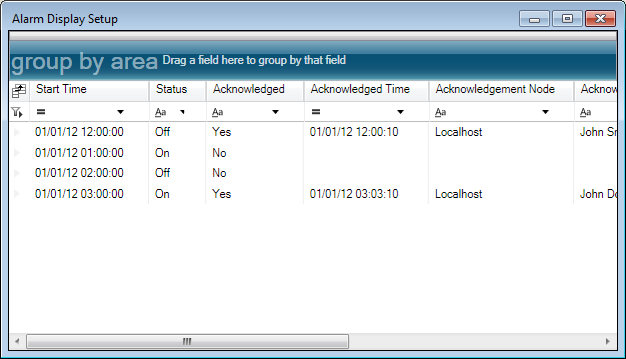
Use the alarm display control to display current and historical alarms in a grid. the Alarm Display grid allows the user to sort, group and filter the grid according to any criteria.
Sym3 Client may display a limited number of alarms using the Alarm Display controls. The maximum number of alarms is set in the Sym3 web 'Alarm Server Configuration Settings' page.
Open the destination window to add the display.
From the Toolbox, Select the Alarm icon, move the pointer into the window and drag out the initial position and size for the control.
If the Property Editor is not displayed, click on Ribbon > Home > Property Editor
Click on the Alarm Display. The Properties for the control will appear in the Property Editor panel and allow changes to be made.
To adjust the default layout of the grid (columns, filter and grouping)
Name: Name of the control. Defaults to 'Alarm Display1'.
Alias: Alias of the control
General:
Menu: a contextual menu that may be associated to the control (the menu is displayed when the user Right clicks on the alarm grid in the client. See "Menus (Operator)"
Behaviour:
Prefilter: A list of predefined filters to apply for this alarm control. Note that additional filtering/sorting may be done using the grid setup. Defaults to No Filter but can select from the following options;
No Filter
On or Unacknowledged
On and Unacknowledged
Off or acknowledged
Off and acknowledged
On
Unacknowledged
User Filtering: if ticked, the users will be able to modify the filters of each column
User Grouping: if ticked, the users will be able to modify the grouping of the grid.
Max Rows: maximum number of rows displayed. Defaults to 1000
Max Days: Only alarms with an ON date > now - Max Days will be displayed on this grid. Defaults to 7.
Layout:
X: X location in the window to place the control
Y: Y location in the window to place the control
Width: Width of the control
Height: Height of the control
Anchor: Which edge of the window the control is anchored to when the window is resized. See Anchors.
Visual:
Visible: Defaults to visible but untick if you wish this Control to be invisible
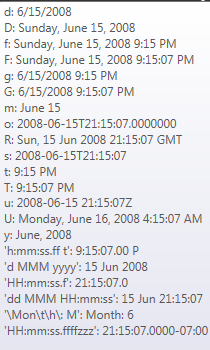
Date/Time format: format to use to display the date. defaults to 'dd/MM/yy hh:mm:ss'
Border:
Border Thickness: Border thickness in pixels. Defaults to 1.
Border Color: Select the color from the list of available colors defined in the project
Font:
Family: Font family. Select from one of the system available fonts. Defaults to 'Microsoft Sans Serif'.
Size:Font size in points. Defaults to 11
Actions:
On Selection Changed: Action to take when the selected alarms is changed. Defaults to (None) but can be selected from one of the System actions.
Binding: The following properties of the Alarm Display Control may be bound to a tag
Visible: